Select the XTOOL website you want to visit.
You will only be redirected after selecting a website.
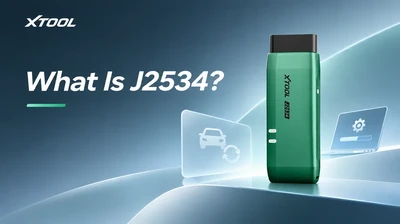
This guide walks through the initial setup of the XTOOL XPortal J2534 interface, from downloading the device utility to selecting the VCI in your OEM application.
The connection instructions follow the XPortal user manual.
Prepare your PC, XPortal, the appropriate connection accessories, and compatible, licensed OEM software with the required account access.
Check the requirements for the intended vehicle and task. For software access, PC preparation and network considerations, see the J2534 programming software requirements guide.
Visit the official XTOOL Download Center and select J2534 Toolbox.
Extract the downloaded package, run Setup.exe and follow the installer. Restarting the PC afterwards is recommended.
Toolbox manages the interface. Install and configure the required OEM application separately; obtaining the device utility does not provide an OEM software subscription.
Choose the connection method before starting the vehicle session.
USB connection
Connect XPortal to the vehicle’s diagnostic connector, then connect it to the PC with a USB Type-C cable.
Wi-Fi connection
Connect XPortal to the vehicle’s diagnostic connector and plug the supplied wireless receiver into the PC. In Toolbox, click WiFi, choose the receiver’s adapter and connect to the hotspot matching XPortal’s serial number. An adapter name such as WLAN 2 may vary between PCs.
Confirm the serial number, Firmware Version and Driver Version in Toolbox. If USB device information does not refresh, click Refresh. J2534 Authorization reports device authorization; OEM account access is separate.
A successful device check confirms one stage of setup. The OEM application still needs to recognize the interface and communicate with the intended vehicle.
For DoIP, use USB between XPortal and the PC, then enable DoIP Mode Switch in Toolbox Settings.
Select the communication method required by the intended OEM procedure before proceeding.
Open the OEM application and select the appropriate XPortal pass-thru interface using that application’s instructions.
Confirm vehicle identification, the selected module and the intended function. Also check any required internet access for authentication or online services.
For supported diagnostic work, use the application’s available functions to read or clear fault codes and view live data. Before ECU programming, follow the OEM’s vehicle power-support requirements and the instructions for the exact procedure.
If the application cannot select the VCI or communicate with the vehicle, resolve the connection issue before proceeding.
Toolbox provides driver and firmware update controls. Keep the interface connected throughout an update.
Choose versions appropriate to the device and OEM software environment. Record the existing versions before making changes.
Enable Log Record before repeating a connection check, then use Feedback to submit the logs.
For step-by-step fault isolation and the information to send support, use the J2534 device-not-detected troubleshooting checklist.